Project Settings
When you select an image to add to a source, Ancestral Sources remembers the file path on a per-source-type (and census country/year) basis. So, for example, when you add a baptism image, next time you add a baptism image it will open up the same folder where the previous image was located.
If you are using a Family Historian project (rather than just a file), then these details are recorded in a Project Settings file within the plug-in data folder. It's possible that a project is used with Ancestral Sources on more than one computer and therefore the file paths are recorded in the project settings file together with the name of the computer they were used on. This allows Ancestral Sources to successfully remember all of the relevant image paths for a project across all of the computers on which it is used.
The project settings file is also used to store other settings that are relevant to the specific project.
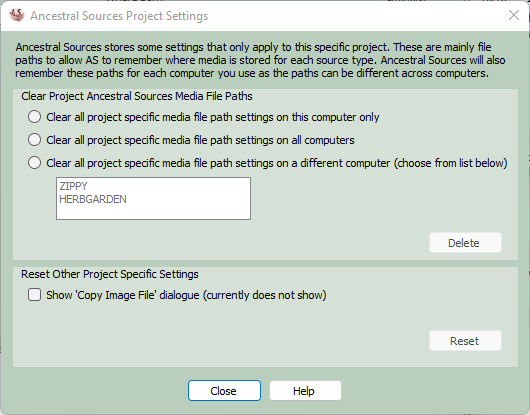
If a project is open in Ancestral Sources there will be a Tools menu item available titled Project Specific Settings... If required, this can be used to delete settings, for example settings that refer to a computer that you no longer own.
You can choose to clear all the project media file path settings for the current computer, all computers or specific other computers. Your file could potentially refer to several old computers that you've used. Please note that it isn't necessary to delete references to old computers although there may be reasons of privacy as to why you wish to remove references to other computers.
In addition there may be other project specific settings that you want to clear. In the current version of Ancestral Sources there is only one of these settings that can appear if you have chosen the option to not be shown the 'Copy Image File' dialogue that usually appears when saving an image. Simply click the setting and then press Reset to have this dialogue appear in future.