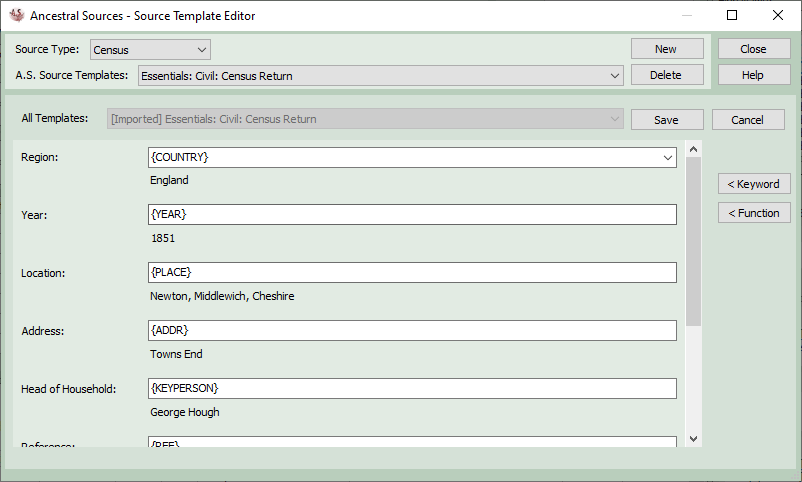
Source Template Editor
This topic only applies to files created using Family Historian 7 or later.
Read the Source Templates help guide first to find out about source templates and how they operate in Ancestral Sources.
You can find links to the Source Template Editor in the Tools menu or via a link on the Source Template screen When the Source Template Editor opens, it will automatically select the same source type that is selected on the main screen. But you can select a different source type if you wish
You can select an existing template that is included in Ancestral Sources from the list at the top. This will select the corresponding source template that is included in your family history file in the bottom half of the screen. If that template is not available then a message will appear to explain how to go about adding the template to the file in Family Historian.

If you want to add a template that has been imported into the file in Family Historian but is not included in Ancestral Sources then you should click on New and then select the template from the drop-down list below.

Note that if you want to use a template with multiple source types then you must add it to each source type on this screen. For example, in the default configuration, the Essentials 'Church Register' has been added to the baptism, marriage and burial source types.
If you are editing a source template or adding a new one, you can optionally specify values to be auto-filled into the fields when an entry is made. Generally these will be auto-text template keywords and functions. See the default templates for examples of how these may be used.