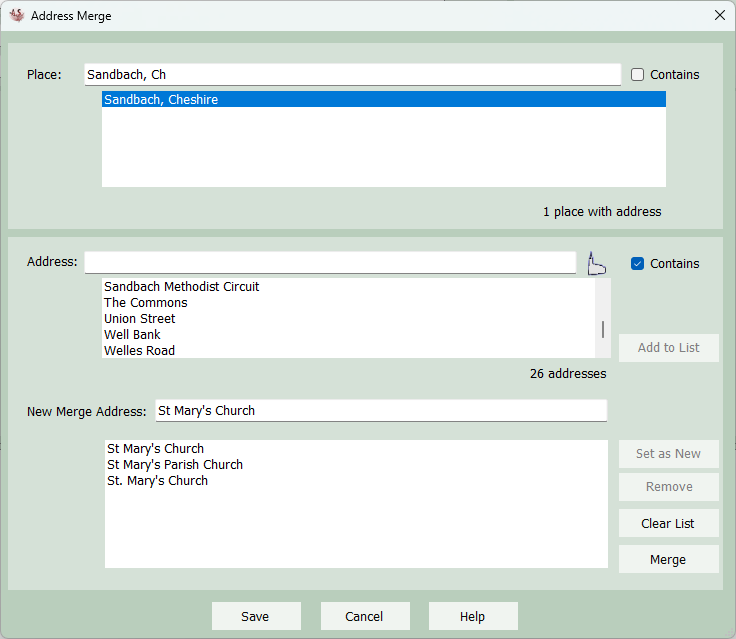
Address Merge
The Address Merge screen is accessed via the Tools menu. It can be used to merge (rename) addresses that refer to the same place but have been recorded inconsistently. In the screenshot above, Sandbach in Cheshire, England has been selected from the place list at the top. The address list then displays all the addresses in the project for facts that reference the place as Sandbach. Double-clicking an address (or selecting an address and clicking Add to List) adds it to the Merge List below. In the screenshot 3 addresses have been added to the merge list and they all refer to the same church in Sandbach: St Mary's Church, St Mary's Parish Church and St. Mary's Church. The New Merge Address text box shows that following the merge, all of these entries will have their addresses changed to be St Mary's Church. By default, the first address added to the Merge List will be copied into the New Merge Address text box, but instead it is possible to select a different merge address and click Set As New or just type in a different address. The Remove button can be used if the wrong address is added accidentally. The Clear List button can be used if you need to start again. Click Merge to perform the rename/merge exercise. The changes are not actually saved to the GEDCOM project file until the Save button is clicked. The Cancel button will close the screen without saving any of the address merge operations.
Note that the Address Merge screen can also be used just to rename a single address if it hasn't been recorded correctly..