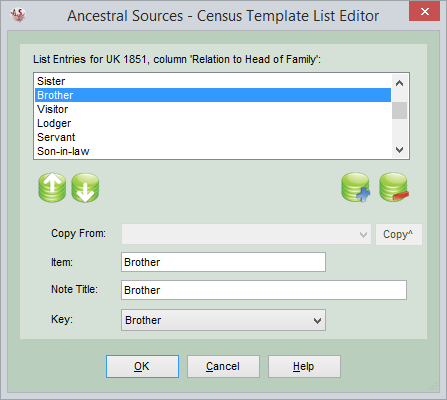
Census Template List Editor
This screen is accessed from the Edit List button on the Census Template Editor screen. Census columns that are of type Gender, Generic, MarriageCondition or Relationship can have a list of items associated with them. These form a drop-down list of possible values when entering data into this column in the census grid on the main screen. The Census Template List Editor screen is used to edit this list.
Use the Plus (+) button to add a new item to the list and the minus (-) button to remove an item. With an item in the list highlighted you can use the up and down buttons to move the item's position in the list.
When adding a new item it needs to be given a value in the Item: field. This is the text that will appear in the drop-down list in the census grid on the main form. The Note Title: value is usually the same as the name of the item. However, for columns of the generic type where the data is saved to census or occupation local note, the value in the note title will be saved into the note. So you may decide to have a longer more descriptive note title which would be unsuitable for appearing in the drop-down list.
For the Gender, MarriageCondition and Relationship column types Ancestral Sources attempts to choose an appropriate value when an individual is added to the census grid on the main form. The key field needs to be associated with list items for Ancestral Sources to be able to recognise them. For example for the gender field you could create an item called Male, M, Man, Homme, etc. and as long as it is associated with the Male key, Ancestral Sources will be able to fill in the field with the appropriate item for any selected individual where the gender is known.
If this column type already exists in another census template and has list items that are not in this list then you can select the column from the Copy From list and click Copy to add those items to the list. For example, when entering the items for the 'Relationship' column you could copy all the entries from the same column in a different census country/year.
Press OK to save the changes or Cancel if you don't want to save the changes.