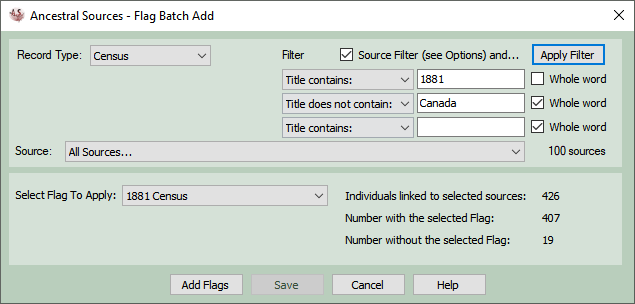
Flag Batch Add
Flags are a feature of Family Historian that allow individuals to be 'tagged'. For example an individual who has a census fact for a Welsh census in 1851 could be allocated an '1851 Wales Census' flag, if you have a marriage record for an individual you can allocate a Marriage Certificate flag, etc.
Ancestral Sources can automatically add flags of your choice to individuals that have entries added. The flags to be added can be allocated using the Flag Assignment Screen.
The Flag Batch Add screen can be used to allocate flags to individuals who may already have census and other facts. i.e. you can use this screen to retrospectively apply the flags.
First choose the type of record, e.g. Census.
A list of sources will be added to the Source list below. By default the Source Filter is ticked which means that sources will be selected using the Source Identification settings on the General Options screen. If this doesn't include the sources you need then you may prefer to untick this.
There are 3 text boxes that can be used to further filter the list of sources based on the source title. For each of the three boxes you can choose to only select sources where the title includes the given text or alternatively where it doesn't. For example, you may decide to enter a year into one of the boxes (e.g. 1851) and a region (e.g. Wales) into another. You can specify whether you want these to only match on whole words rather than any part of the source title. Click the Apply Filter button to see how these affect the resulting list of sources.
Identifying Individuals
Ancestral Sources will look for all individuals linked to each source via a relevant Fact:
Select the flag you wish to apply to the selected individuals. The screen will display the number of individuals, how many already have the flag and the number that don't. Click Add Flags to apply the flag to the individuals who need it.
You can then go on to add more flags to individuals linked to other sources. Click the Save button to save these changes to your file.