Options
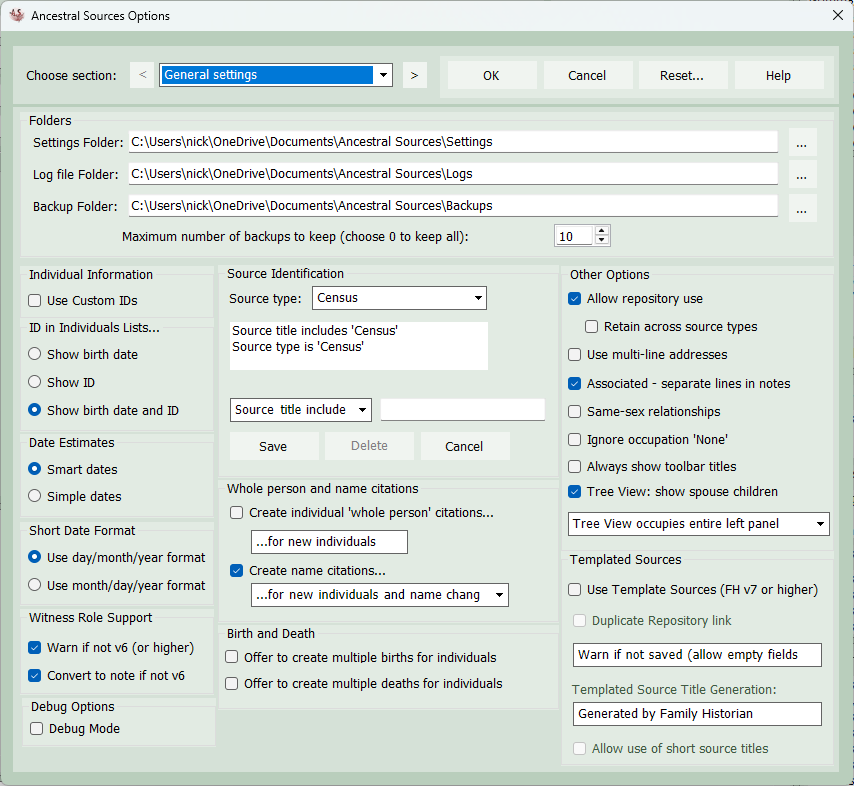
The Options screen can be opened by selecting Options... from the Tools menu on the main screen. The options are spread across a number of pages. There is a Reset button at the top of the screen which can be used to reset selected options back to their original state.
The pages available are:
These settings apply to all source types handled by Ancestral Sources
Settings Folder: You can specify the folder where the Ancestral Sources settings files are stored. Settings, auto-text templates, associated person types, census templates and links between places and countries are saved in XML files in this location.
Log file Folder: Log files are created when changes are made to family history GEDCOM files. The folder where these files will be stored can be specified here. See the View Log Files topic.
Backup Folder: When changes are saved to the family history GEDCOM file a backup copy is saved to the folder specified here. By default only the most recent 10 backups are retained. This number can be changed. If set to 0 then all backups are retained.
It is highly recommended that you include all 3 of the above folders in your regular hard-drive backups to external media.
Use Custom IDs: If this option is ticked then any individuals in the file with custom identifiers will have those identifiers displayed rather than the usual system id. Custom IDs are always shown in angled-brackets, e.g. <1234> whereas system IDs are shown in square brackets, e.g. [7890]
ID in Individual Lists: The options specify how information is displayed in the lists of individuals on the main screen. You can opt to show the birth date, the ID or both following the name of the individual. If the option to just show the birth date is selected and a birth date does not exist for an individual then the ID will be shown instead. If the option Use Custom IDs is selected then the custom ID will be shown where there is one rather than the system ID.
Date Estimates: If simple dates is selected then if when calculating, for example, a year of birth, the age is taken off the year in question. e.g. someone who is 10 in 1880 is estimated to be born in 1870. However, if the date was February 1880 then someone who is 10 was probably born 1869. If smart dates is selected then for any dates before the end of June an additional year will be taken off for these calculations.
Short date format: Ancestral Sources will attempt to interpret dates that you type in and understands a variety of formats. When entering a date such as 5/10/1800 it could be interpreted as 5th October 1800 (if you use day/month/year format) or 10th May 1800 (if you use month/day/year format). Ancestral Sources will look at the Windows control panel settings to determine which of these formats to use. However, you can choose to change this format if necessary.
Witness Role Support: Version 6 of Family Historian introduced the witness role feature which Ancestral Sources uses by default when saving associated individual types. If warn if not v6 (or higher) is ticked then a warning message will appear if associated individuals using witness roles are chosen to be added to a file that is identified as being created by a version of Family Historian that is earlier than version 6. This warning gives the option to save using the witness roles, use local notes rather than witness roles or cancel to allow the user to change the method used to record associated individuals. If the warn if not v6 (or higher) option is unticked then the warning message will not appear and the witness roles automatically converted to local notes if the convert to note if not v6 option is ticked.
Debug Mode: Only switch on this mode if directed to do so by the Ancestral Sources developer.
Source Identification: You can specify how Ancestral Sources should recognise sources in your file as being for a particular source type. This is used to identify relevant sources when using recording method 2 or when adding images to existing sources or when using the Census Source Conversion screen. You can specify rules for all source document types, i.e. census, baptism, etc. For example, by default sources are considered to be for census records if the source title includes the word Census or if the source type is Census. You can add to this filter list if necessary. For example if all your census sources have source type CensRec then you would select Source type is: from the list and then type CensRec into the box next to it and click Save. You can also remove filters from the list by selecting them and clicking on Delete. Most users should find that the default settings do not need to be changed. Note that if more than one filter applies then sources that match any of the criteria will be selected. e.g. by default sources that have the word 'census' in the title or are of type 'census' will be displayed when viewing sources for census records.
Whole person and name citations: When a new individual is added to your file by Ancestral Sources you can opt to have a name citation (i.e. the name of the individual is linked to the source via a citation) and/or 'whole person' citation (individual is linked to source via citation) created. There are also options available to create whole person citations and/or name citations for every individual added to the new entry, even if they already exist in the file. If the option to have name citations created is selected then citations will also be linked to the name if the individuals name is changed.
Birth and Death: When saving a record Ancestral Sources may offer to create a birth event for the individual(s) concerned using the Birth Events from Entry or Birth Events from Census screens. In baptism or marriage records it is possible that the parents are recorded as deceased in which case the Death Events from Entry screen may be displayed. Some researchers like to record multiple birth events and/or death events for an individual to allow for conflicting data to be recorded, although most researchers would never wish to do this. Use these tickboxes as appropriate to specify your preference.
Allow repository use: If this option is selected then links will be shown to allow you to add repository information to a source. Untick this option if you never use repositories.
Retain repository across source types: If this option is selected and the source type is changed, the currently selected repository will remain for the new entry. This only applies if templated sources are not being used.
Use multi-line addresses: The recommended way to use addresses in Ancestral Sources is to have all parts of the address on one line separated by commas. However, it is possible to split addresses over multiple lines as this is supported by the GEDCOM standard. If the use multi-line addresses option is ticked, a button will appear next to address fields and clicking on this button will display a small form in which to type in the address. Note that even if this option is not ticked, if an existing multi-line address is selected in Ancestral Sources then the button will be displayed.
Associated Individuals - separate lines in local notes: When using source types other than census, if the associated individual type used records data in local notes, then the entry for each associated individual are usually separated onto separate lines. If this option is unticked the entries will be recorded onto a single line but separated by commas. This option is for users who want to include notes in narrative reports where separate lines spoil the layout of the report.
Same-sex relationships: It is rare that same-sex relationships are found in census, baptism, marriage, etc. records until recent times. If this is unticked then Ancestral Sources will always assume fathers are male and mothers are female which makes selecting individuals a little easier. If you do come across a record for a single-sex couple then simply tick this option. You can always untick it again once the record has been added. Please note that this option being unticked by default does not in any way suggest that the developer of this software is against the idea of same-sex relationships, far from it. It just reflects the fact that same-sex relationships rarely appear in the sources that Ancestral Sources is used to enter.
Ignore occupation 'None': If this option is ticked then an occupation recorded as None (or none) will not be recorded as an occupation fact. It will, however, be displayed in auto-text.
Always show toolbar titles. By default, when a source type is selected on the main screen toolbar the title of that source is displayed next to the icon. If this option is ticked then the title of every source will always be displayed next to each button.
Tree View Display Option. When the descendant tree is displayed for an individual, by default it will take up the entire left panel of the main screen. There are alternative options to have it display in a smaller panel, either at the top left, or bottom left.
Tree View show spouse children: If this option is ticked, then the children of an individual's spouse, or spouses, will be shown in the Tree View, even when they are not the children of the individual. They will be labelled as 'Spouse Child" to distinguish them.
Templated Sources. Family Historian 7 includes support for Templated Sources. If this option is ticked and you use recording method 1, then Ancestral Sources will expect you to enter information into the additional fields provided by the template. If you are using a source template then usually the repository is included as a field in the template. In that case the normal repository link will not be created, unless the Duplicate Repository link option is ticked. If this option is ticked then there will be two links created between the source and the repository. By default, Ancestral Sources will warn you if any of the source template fields do not have data in them. However, you can change this option so that you're only warned if you've not saved the source templates - use this option if you frequently leave some of the fields empty. Note that if you choose to not save the template the source will still be saved but as a 'generic source', without the template fields.
Templated Source Title Generation. Ancestral Sources will generate a source title using the title templates specified in the Options screen for each source type. Family Historian also has its own rules for automatically generating a source title. The default is to not have the source title saved by Ancestral Sources but instead have Family Historian automatically generate the title when the file is loaded. There are also options to have AS create the source title but allow Family Historian to replace with its own title if you edit any of the source fields in Family Historian. Altenatively, you can opt to have the title fixed so that Family Historian will never change it. This requires Family Historian v7.0.5 or later as it uses a feature kindly added by Calico Pie for Ancestral Sources.
Templated Sources: Allow use of short source titles. In Family Historian, templated sources do not use the generic 'Short Title' field and therefore, by default, if you opt to use Templated Sources, Ancestral Sources will not generate short source titles even if you have these options selected in the options for each source type. Ancestral Sources will generate the short source title for templated sources if the Allow use of short source titles option is ticked. Only use this option if you understand the implications of this.