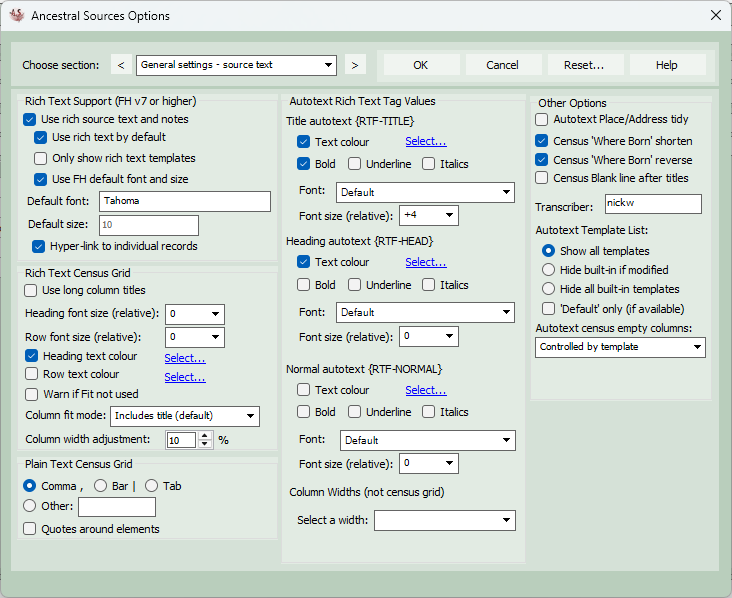
Options - General Source Text
This screen deals with options related to the source text, including auto-text.
Rich Text Support (FH v7 or higher)
Use rich source text and notes: Family Historian 7 introduced the ability to use rich text within source text and notes. This includes bold, italics, underline, different fonts and colours, as well as tables. If this option is ticked and the file being used is a Family Historian 7 file (or later), Ancestral Sources will offer the ability to create rich text source text. You can decide whether to always use rich text by default or use plain text instead by default. When you select an autotext template, Ancestral Sources will usually allow you to choose from a selection of rich text and plain text templates. If you tick the Only show rich text templates option then it will not give you the choice of selecting plain text templates. By default Ancestral Sources will use the same default font and font size as Family Historian for rich text boxes. However, if you untick the Use default font and size option you can select a font and font size from the list below.
Hyper-link to individual records: There is an option (switched on by default) to have a hyperlink to each individual added to the auto-text rich-text census grid and within other auto-text templates if the =LINKIND auto-text function is used with rich text. You can double-click these hyperlinks in Ancestral Sources to edit the name that is displayed in the source text. In Family Historian 7 clicking these links displays the individual's properties dialog box.
Rich Text Census Grid
If you're using the auto-text feature to copy the census grid into the source text, then you can opt to have it display long column titles rather than the usual short titles and select to have larger or smaller font sizes relative to the default font size used for rich text. You can also select the colour to be used for headings and normal text within the census table. If you are editing a census entry and use auto-text with a rich text template then you can use the Fit button to automatically reduce the main census grid to the narrowest column widths required. This will automatically also reduce the width of the auto-text version of the table too. You can then manually adjust the width of the main census grid to make corresponding changes to the auto-text version. By default, when it resizes columns to the narrowest width required it includes the column header title in that calculation. The column fit mode can be changed so that the width of the column header is ignored. This will innevitably lead to column titles wrapping over multiple lines, but does generally result in narrower table widths. If the warn if Fit not used option is ticked, then Ancestral Sources will display a warning message if you try to save the entry without using the Fit button.
Column Width Adjustment: When the main census grid is converted to the auto-text equivalent (particularly when using the 'Fit' button) it may be that the auto-text grid columns are slightly too narrow or too wide. This can be mostly explained by a difference in font size between the AS interface and the rich text box. The default font size for the AS interface is 8 but the default for rich text in FH7 is 10. The Column Width Adjustment option specifies a percentage that can be used to increase or decrease the autotext census grid column widths. By default this has been set to 10% but you can adjust this as required - it may even need to be a negative value.
Plain Text Census Grid
Grid Column Separator: When the Auto Text feature on the main screen is used with plain text (i.e. not rich text), Ancestral Sources copies the contents of the census grid into the source text box. The character used to separate each column is selected here. Although separating data by tab is the obvious choice, unfortunately the tabs will not line up correctly if different fonts or font sizes are used. For example, it is very likely that the census columns will look untidy when viewed in a report created by Family Historian. The Other: option can be used to specify another character or collection of characters as column separators. The {TAB} keyword can be used to represent a Tab character. The FHUG Knowledge Base includes some suggestions from an Ancestral Sources user, Mike Tate, as to how to specify column separators and fonts in Family Historian to make tabbed columns look good in reports (search the knowledge base for 'Tabulate Multiline Text'). The Quotes around elements option will put quotes (inverted commas) around the data from each cell copied into the source text by the Auto text button. This makes it easier to copy the data into a spreadsheet in 'csv' format.
Autotext Rich Text Tag Values
There are three Auto-text keywords that can be used with rich text autotext templates to specify text colour, style, font and font size of titles, headings and normal text. This saves a lot of time and aids consistency so that the template designer only has to use the {RTF-TITLE}, {RTF-HEAD} or {RTF-NORMAL} each time rather than entering codes for individual style elements. This also allows the user of Ancestral Sources to choose their own styles for these 3 tags. The default settings allow for a bold, blue title with a slightly bigger font, a blue heading and normal text shown without any style changes.
There are also ten Auto-text keywords that can be used with rich text autotext templates to specify the column widths for tables other than census tables (where the column widths are determined by the main census grid). Several of the autotext templates included with Ancestral Sources use these keywords and this means that the user of Ancestral Sources can edit these widths if they would prefer them to wider or narrower, e.g. if using a larger font.
Other Options
Autotext Place/Address Tidy. Some users put additional commas into their places to help to maintain a hierarchy of place names. If this option is selected then any additional commas and spaces in a place or address will be removed when displayed in source autotext. Note that the .FULL sub-tag can be used in autotext templates if you ever need the place or address to be viewed in the untidied form.
Census 'Where Born' Shorten: Following the same rules as the {Place.Medium} auto-text keyword, if this option is selected the auto-text transcription of a 'where born' (place of birth) census column will miss out any part of the text after the second comma. e.g. Middlewich, Cheshire, England would be displayed as Middlewich, Cheshire.
Census 'Where Born' Reverse: If this option is selected the auto-text transcription of a 'where born' (place of birth) census column will reverse the parts of the place that are separated by commas. e.g. Middlewich, Cheshire, England would be displayed as England, Cheshire, Middlewich. If this is combined with the Census 'Where Born' Shorten option, then the shortening applies first. e.g. Middlewich, Cheshire, England would be displayed as Cheshire, Middlewich.
Census: Blank line after titles: This will cause auto text to leave a blank line between the row that shows the column titles and the data for the first individual.
Transcriber: This option is only relevant if you use the {SYSTEM.TRANSCRIBER} Auto-text Keyword in your auto-text templates. You might decide to include your own name in auto-text templates - use this option to specify how that will presented if you use the {SYSTEM.TRANSCRIBER} keyword. By default this will be set to the Windows login name of the user but will almost certainly need to be changed to suit your requirements.
Autotext Template List: By default the main screen will show both built-in and custom auto-text templates when the choice of template is presented. There are options to hide the built-in template if a custom template with the same name exists. There is also an option to hide all built-in templates.
Versions of Ancestral Sources prior to version 8 had only one census template (technically 2 - one for plain text and one for rich text) named 'Default'. For users who want to continue to use the default and don't want to be shown a list of options, they can tick the Default Only option which will only display the Default template. Combined with the Only show rich text template option (or unticking use rich source text and notes) this could be used so that clicking the Auto button in the main screen automatically selects the Default template. Similarly users could rename to Default the autotext template they always use for other source types too.
Autotext Census Empty Columns: By default this setting is set to "controlled by template". This means that the decision as to whether census columns that have no data entered for them are included in the source text tables generated by Autotext, is determined by the AutoText Visibility census template field setting. This setting can also be changed to ignore the template settings and instead specify that empty columns are never shown or always shown. All of the built-in census templates have the Autotext Visibility setting set to 'Always show'.