Rich Source Text
This topic only applies to files created using Family Historian 7 or later.
If the file used in Ancestral Sources has been created using Family Historian 7 or later, then the source text or source note can include 'rich text' formatting. i.e. bold, italics, underline, fonts, tables, etc.
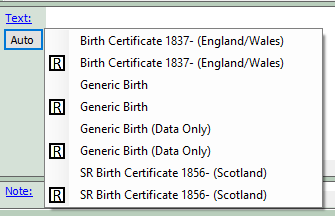
If you are using the Auto-text feature (accessed by clicking the Auto button on the main form) then by default you will be able to choose from both rich-text and plain text templates. The [R] indicates auto-text templates that use rich text
If you are manually entering source text or notes then by default these will be rich text notes. If you don't want to use rich text or only want to be given the option of using rich text then you can control these using settings on the Options - General Source Text screen.
When you're happy that all of the Ancestral Sources data has been entered and the auto-text routines have done the best that they can, you may then decide to edit the text manually. This will turn off auto-text: if you change your mind you can reinstate the auto-text function by clicking the auto button again.
You can edit the source text or note on the main screen, but you can access a larger, dedicated editing screen by clicking on the underlined Text or Note links.

If you are editing a census entry and use auto-text with a rich text template then you can use the Fit button to automatically reduce the main census grid to the narrowest column widths required. This will automatically also reduce the width of the auto-text version of the table too. You can then manually adjust the width of the main census grid to make corresponding changes to the auto-text version.
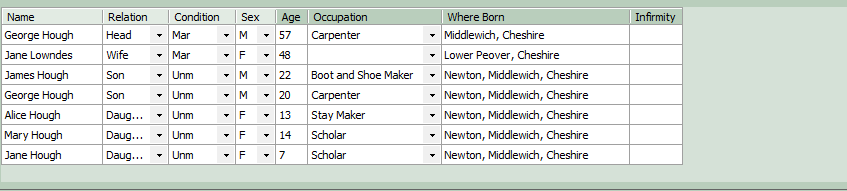
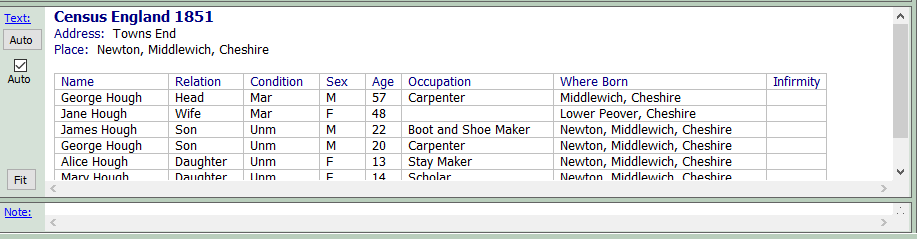
Note that the column widths of both tables will probably not match unless the font and font size used on the grid and for the rich text are identical.
There are options available to have the auto text feature automatically generate hyperlinks to individuals within the source text. You can double-click these hyperlinks in Ancestral Sources to edit the name that is displayed in the source text. In Family Historian 7 clicking these links displays the individual's properties dialogue.
If you paste a web link into the source text, you can edit the url or the text that is displayed by double-clicking the link. This brings up a dialogue box where the details can be edited.