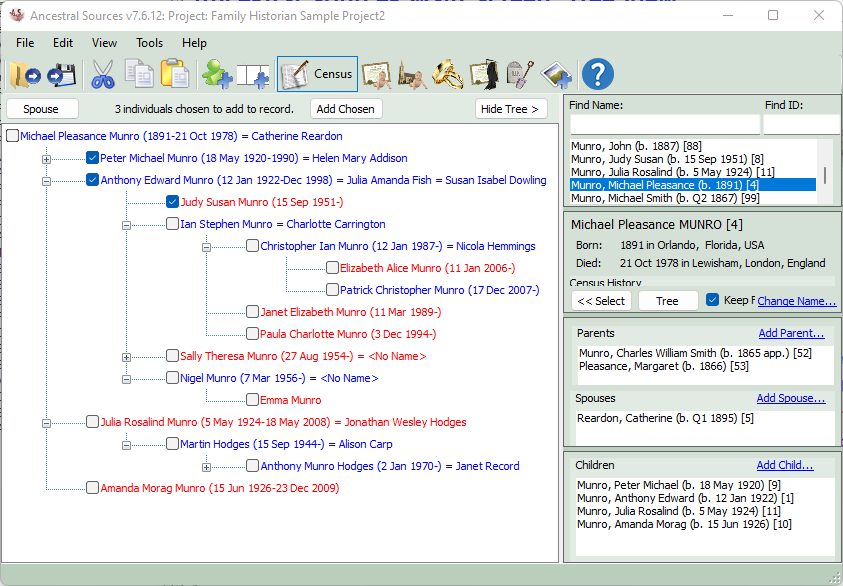
Ancestral Sources Main Screen: Tree View
When an individual who has children recorded is selected on the main screen, a Tree button is enabled. Clicking this buttons displays a descendant tree for the individual. This can be used as an alternative method for finding and selecting individuals rather than using the All Individuals and other lists on the right-hand side of the screen.
There is an option available to specify where the Tree View will be shown on the main screen. By default it is shown in the left-hand panel, obscuring the main data entry and source text sections. There are alternative options to have the tree take up a smaller section of the screen and cover either the main data entry section or the source text section.
The tree will initially just show the individual and their children but if any of those children have their own children recorded then these branches can be expanded by clicking on the + expansion buttons. The people in the tree are colour coded with red to show females and blue to show males. If the Tree View show spouse children option is selected (the default setting), the children of an individual's spouse, or spouses, will be shown in the Tree View, even when they are not the children of the individual. They will be labelled as 'Spouse Child" to distinguish them and will appear in the tree after the children of the individual.
Clicking an individual in the tree will select them on the right-side of the screen. At any time you can view a different individual's descendants by clicking the Tree button again. Choose the Hide Tree button to stop showing the descendant tree.
Right-clicking an individual will reveal a context menu that allows the Change Name, Add Parent, Add Spouse, Add Sibling and Add Child dialogue boxes to be accessed as an alternative to using the hyperlinks in the right-hand panel.
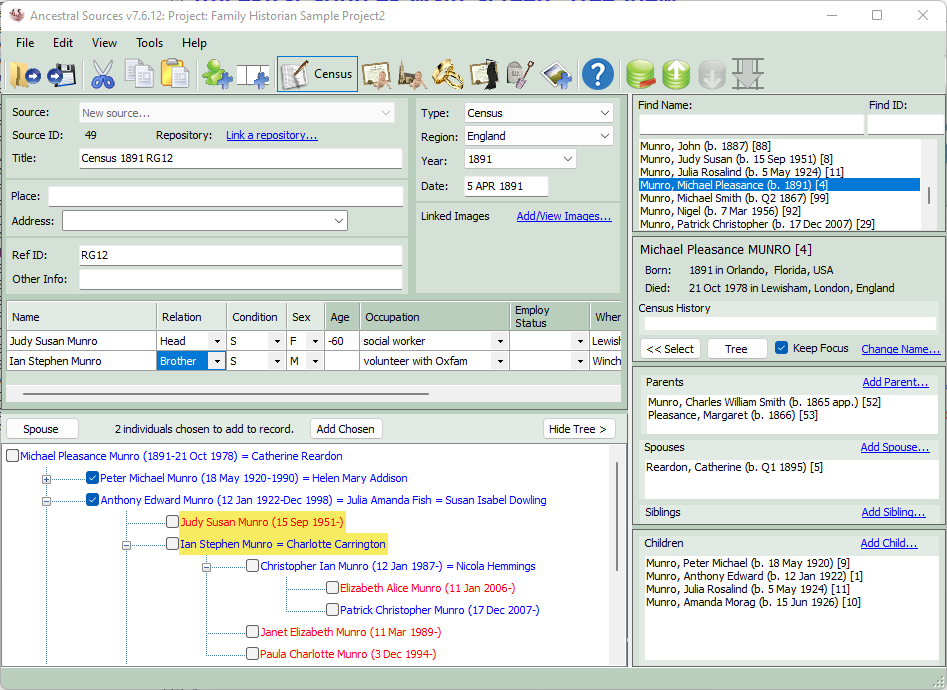
In Census Source mode the descendant tree will show check boxes for each individual in the tree. This allows multiple people to be selected and added to the census entry in one step by clicking on the Add Chosen button. The individuals will be added to the census grid in the same order they were selected in the tree. If the individuals are added in the wrong order then to correct this, you can use the buttons that can change the order of the census grid rows. If an individual who is selected has a spouse recorded then a Spouse or Spouses button appears in the Tree View tool bar. Clicking this button will reveal a list of the known spouses for the individual and these can be ticked and used with the Add Chosen button too.